
Display workflow
A Live Wedding Photo Wall, from Guest Upload to Screen
Turn guest uploads into a reception display without leaving connectivity, moderation, or screen ownership to chance.
Short answer
Collect guest pictures through one link, review them, then open your WeddingPhoto App slideshow on a laptop connected to the venue's TV or projector. Celebration ($59) and Forever ($89) include the display. Assign a screen operator and refresh the player after approving new photos: the current player loads its collection when opened, rather than adding uploads automatically. Keep an offline loop ready if the connection fails.
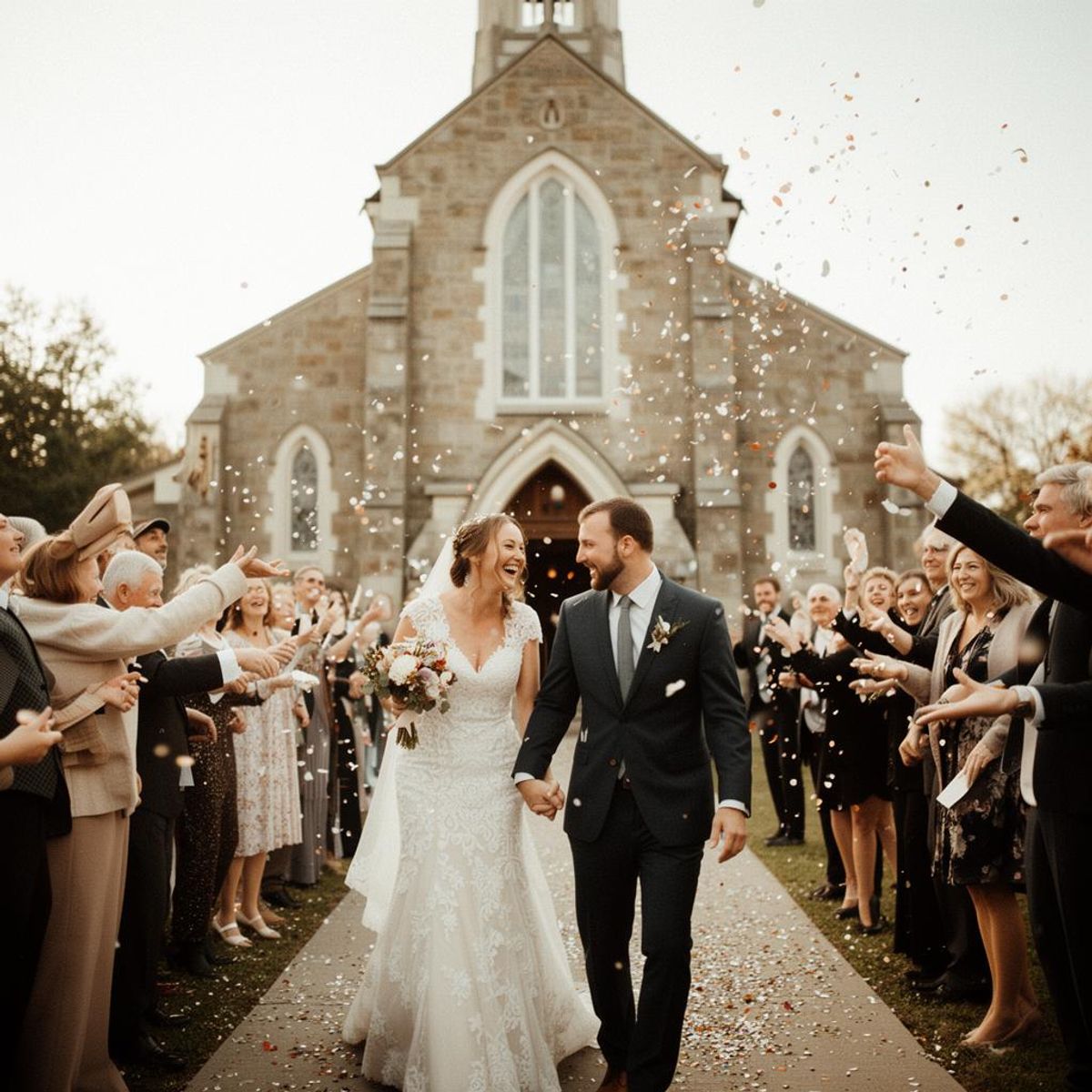
Choose a slideshow package, or try the sample display below.
Preview a sample photo wall
This local preview uses the event player's photo display with three sample pictures. It does not connect to a wedding, receive uploads or demonstrate transfer speed. Start the loop to see the display interval; the live event also offers shuffle, muted videos and optional uploader names.

Sample 1 of 3 · Paused
Set up collection and review before the display
- Create your event on Celebration or Forever. Intimate does not include the slideshow.
- Enable the slideshow and set the guest gallery to public in event settings.
- Enable review if pictures should wait for approval before becoming visible.
- Share the guest upload link or QR code, and approve a few opening photos.
- Open the event's slideshow on the screen device and refresh after each newly approved batch.
“Public” here allows gallery viewing by people with the event link; it is not a private screen-only permission. Use it only if that audience should also be able to browse. Keep host login details off guest signs. Guests scan your wedding photo QR code to contribute from a browser without an account; the operator uses the separate slideshow destination on the display device.
In event settings, choose an interval from two to twenty seconds, shuffle the order, include videos and optionally show uploader names. Videos play muted and advance with the slideshow interval. Use a separate tested player for a speech recording or film that must play with sound or run to its full length.
Decide what “live” should mean
| Mode | Best use | Risk |
|---|---|---|
| Curated loop | Reliable decor throughout the reception | Does not reflect new uploads immediately |
| Reviewed live queue | Fresh guest pictures with host control | Needs an active moderator |
| Automatic live feed | Informal events with a trusted audience | Every accidental upload can reach the screen |
For most weddings, a reviewed queue balances participation with control. Start with professional engagement pictures or approved family photos so the screen is never empty. In WeddingPhoto App, review and refresh the display between batches. If automatic arrival on screen is essential, compare that requirement in the wedding photo-wall service comparison before choosing.
Confirm the venue signal chain
Ask which connector the display accepts, its resolution, whether sound should be disabled, and who controls input switching. Bring the correct adapter, power supply, extension cable, and a way to prevent the laptop from sleeping. Hide system notifications and close personal tabs before connecting.
A laptop connected by HDMI and a smart TV's built-in browser are different setups. Prefer the device the venue can support, and test the exact combination. Check portrait and landscape photos: the player fits the whole picture rather than promising that every image will fill a wide screen. Keep cables secured and the operator's device accessible.
Test using the venue network
Run the real slideshow while several phones upload sample files. Check how long new images take to appear and how the player behaves after a connection drop. Venue guest Wi-Fi can have a sign-in page or device limit that was not present during office testing.
Assign two operational roles
The display owner handles cables, full-screen playback, and restarts. The collection moderator reviews incoming files and removes anything unsuitable. One person can perform both at a small event, but the couple should not be that person.
Run one complete reception rehearsal
- Open the slideshow on the actual screen device with the correct event and settings.
- Submit a test photo through the printed guest QR card.
- Approve it if review is enabled, refresh the player and confirm it appears.
- Try a portrait, a landscape image and a short muted video if you will include clips.
- Leave the setup running to check screen sleep, power and Wi-Fi sign-in interruptions.
- Rehearse switching to the local backup without displaying personal desktop content.
Choose the right moments
A slideshow works well during cocktails, dinner transitions, and later dancing. Dim it or switch it off during speeches, first dances, and other moments where movement on a bright screen competes for attention. Place the display where people can glance at it without blocking service paths.
Prepare a graceful fallback
Store an offline folder or video loop of approved images on the display device. If uploads stall, continue showing that set and let guests contribute for later. The photo collection can still succeed even when the live layer is unavailable.
This backup runs in your device's own photo or video player; WeddingPhoto App does not promise an offline live-feed mode. If a picture must be removed immediately, switch the screen away first, hide it in the host gallery, then reload the slideshow. An already loaded frame is not withdrawn from a screen simply because the server copy changed.
| Problem | Operator response |
|---|---|
| Newly approved photo is missing | Refresh the slideshow; check the correct event and review status. The player does not poll for new files. |
| Gallery is private or slideshow disabled | Check the plan, slideshow switch and gallery-viewing setting before changing access. |
| Uploads stop or Wi-Fi requires sign-in | Use the local backup on screen. Keep originals on guest phones and send the upload link later. |
| Video has no sound | Muted playback is intentional. Use your separate tested video player for audio. |
After the display ends, keep collecting within your upload window and download the originals before storage expires. The guest photo collection plan covers reminders and the final archive. The screen is one use for the pictures, not the only copy you should keep.
Wedding photo-wall questions
What is a live wedding slideshow?
It is a photo wall that cycles through wedding images on a TV or projector. WeddingPhoto App's current player loads the collection when opened; refresh it after approving new contributions to include them in the loop.
Should every guest upload appear automatically?
Not necessarily. A reviewed queue is safer when the screen is public because accidental, private, or unsuitable images should not appear before a host sees them.
What internet connection does a live slideshow need?
Requirements depend on the service. Test the exact display device on the venue connection, and prepare an offline set of approved photos if connectivity is uncertain.
Ready to set up your display? Compare Celebration and Forever, the two plans that include the slideshow, and rehearse the upload-to-screen workflow before your wedding.
Updated .